Introduction
Just imagine a situation where you are stuck in the middle of a deserted near Nevada while tracking near the Grand Canyon or in a remote location near Banff in the Rocky Mountains with no coverage and need medical help or navigation. There is a brand new feature in iPhone 14 and above that allows you to contact when you have no wifi or network coverage at all. Sounds interesting!! 😲
Let’s dive🤿 into details and see how we can use this neat lifesaver hack.
Use Emergency SOS via satellite on your iPhone
On iPhone 14 or later, you can use Emergency SOS via satellite to message emergency services when you’re outside of cellular and Wi-Fi coverage.
Note: Emergency SOS via satellite isn’t available in all countries or regions you will see a list of countries right here.
How to get access to this?
If you’re going somewhere that might not have cellular and Wi-Fi coverage, create your Medical ID, add emergency contacts, and try the Emergency SOS demo before you go.
Here are the instructions to look at the demo, you may optionally follow a video about this
using the link above.
- Go to Settings > Emergency SOS.

- Scroll down and tap Try Demo.
How to connect to Emergency SOS via satellite on your iPhone
If you need emergency services and you don’t have a cellular or Wi-Fi connection, you can use Emergency SOS via satellite.
- Try calling 911 or emergency services. Even if your normal cellular carrier network isn’t available, the iPhone will attempt to route the 911 call through other networks, if available.
- If the call doesn’t go through, tap Emergency Text via Satellite to text emergency services. You can also go to the Messages app and text 911 or SOS, then tap Emergency Services.
- Tap Report Emergency and follow the onscreen instructions.
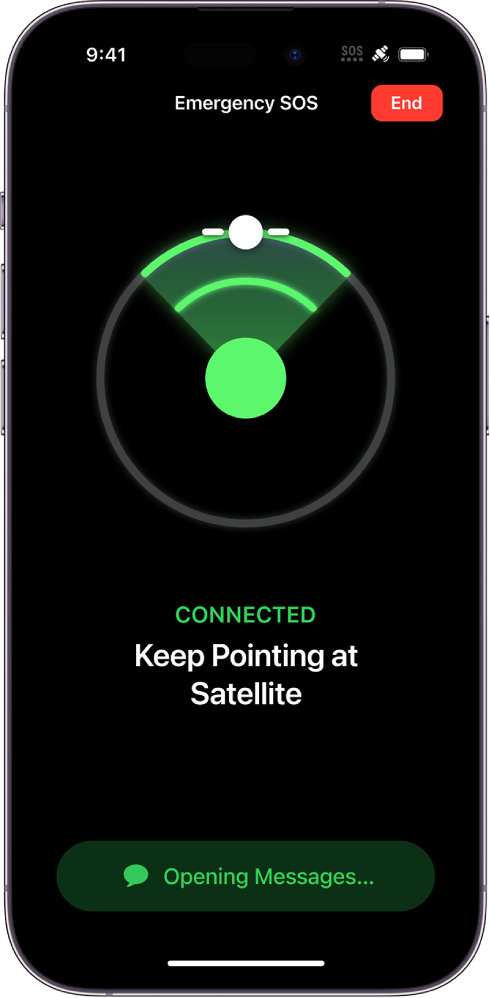
Important: To help you connect to a satellite, make sure to hold your phone normally in your hand—just make sure your phone has a clear line of sight to the sky. If you’re under heavy cover of trees or surrounded by other obstructions, you might not be able to connect to a satellite.
After you’re connected, your iPhone starts a text conversation by sharing critical information like your Medical ID and emergency contact information, your answers to the emergency questionnaire, your location (including elevation), and your iPhone’s battery level. You can also choose to share the information you send to emergency services with your emergency contacts.
How to send your location via satellite in Find My on iPhone
On iPhone 14, iPhone 14 Pro, iPhone 15, and iPhone 15 Pro models, with iOS 16.1 or later, you can use the Find My app

to share your location via satellite when you’re outside cellular and Wi-Fi coverage.
- Emergency SOS via satellite is available in Australia, Austria, Belgium, Canada, France, Germany, Ireland, Italy, Luxembourg, the Netherlands, New Zealand, Portugal, Spain, Switzerland, the U.K., and the U.S.
- International travelers who visit a country or region where Emergency SOS via satellite is available can use the feature while visiting, except if they bought their iPhone in certain countries or regions
Before you disconnect from cellular and Wi-Fi coverage
Most Find My features are only available if you’re connected to a cellular or Wi-Fi network. To share your location with friends via satellite, do the following before you’re outside cellular or Wi-Fi coverage:
- Set the iPhone you’re bringing with you as the iPhone that shares your location. On your iPhone 14 or iPhone 15, open the Find My app, tap Me at the bottom of the screen, and then make sure Share My Location is turned on. If your iPhone isn’t currently sharing your location, tap Use This iPhone as My Location.
- Add the contacts you want to share your location with.
Send your location via satellite
You can use the Find My app to share your location via satellite if you’re not connected to a cellular or Wi-Fi network. To share your location with a friend via satellite, you must already be sharing your location with that friend in Find My
- Make sure that you’re outside with a clear view of the sky and the horizon. If you’re under heavy foliage or surrounded by other obstructions, you might not be able to connect to a satellite.
- Open the Find My app, then tap Me at the bottom of the screen.
- Tap Send My Location (below My Location via Satellite), then follow the onscreen instructions.
If you need to turn left or right to connect to a satellite, your iPhone provides guidance—just follow the onscreen instructions.
Note: It may take a few minutes to send your location via satellite; continue to follow the onscreen instructions until the message is sent.
You can send your location once every 15 minutes. When you send your location via satellite, you don’t see your friend’s location in the Find My app.
Call to Action
Try these cool features out when you plan to go on a trek with no network coverage share your experience and spread the word if you like this and help others.
Watch out soon for similar feature on Android, its not there yet.
Stay Safe!!🦺
With enthusiasm🚀🚀
Abhijit
Comments